
To create simple text animations, we recommend Adobe After Effects program. AE is one of the most popular tools for creating visual effects, motion design and the like. This may sound very complex, but once you learn the basics of the program you will be able to create a whole range of different animation styles.
How to make simple text animations?
In addition to being used to create special effects, After Effects is ideal for creating short video animations that can be used as social media posts.
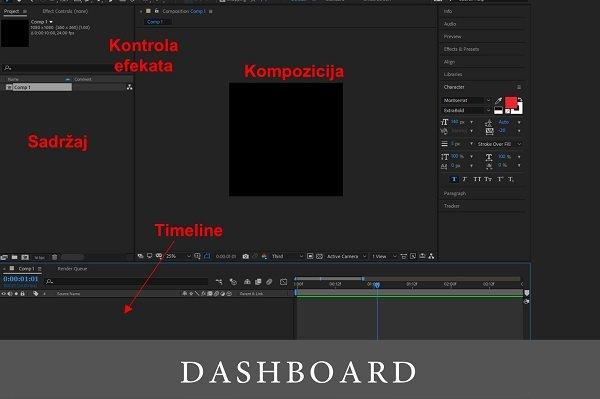
After Effects Dashboard
Compared to other Adobe programs, After Effects is most similar to Premiere Pro program. If you use Default view, at the very bottom is the timeline, the right part of the screen is occupied by your composition, while the left side contains the material and effects controls. Separate tabs for searching and adding effects, typewriting and similar are displayed along the right border if you add them.
See how it looks in the picture below:
Adding text
To add text to the composition, click on the icon in the shape of the letter “T” or press the shortcut CTRL+T. If you press only T, and you marked some Layer in the program, you will get an adjustment with decreasing and increasing Opacity. Kada vam se prikaz miša izmeni u slovo T kliknite na kompoziciju gde želite da kucate i iskucajte željeni tekst.

Text styling
On the right side of the window “Character” there are text styling options. Here you change the font, color, size of the text you marked in T to Imeline .

If, for example, you change the size and you do not notice that the text increases or decreases, you probably did not select the Text layer in Timeline. Pored prozora Use “Character” and “Paragraph” to style the text.. Ovde možete poravnati tekst sa leve i desne strane, centralno.
Text animation
Like all animations in After Effects , text animations are created and displayed in the Timeline. Tekst možete animirati na bezbroj načina (putem pozicije, Opacity , Scale , etc.) and in this text we will show you some of the most basic ones.
When we animate some of the basic values like position, Opacity or Scale we use Timeline. U našem primeru prikazaćemo animaciju putem Opacities. Izaberite početnu tačku animacije, na primer na početku kompozicije na nultoj sekundi i smanjite Opacity na 0. Primetićete da je tekst potpuno nestao. Dodajte Keyframe by clicking on the clock icon and after that move the composition for two seconds. Now increase it Opacities at 100. Play the animation and you will see the text appear in your composition.

You can also apply this procedure for other elements such as images, logos or shapes .
Text presets
After Effects also offers a Text presets option. Izaberite Text layer , on the right side, under the Effects item on the right side, there are Text presets – settings for text.

Once you have selected the desired animation, you can set the keyframe– these according to your wish. If the animation seems slow, zoom in keyframes to each other, if the animation is too fast then move them away from each other.
For more news and interesting stories from digital marketing , visit our blog page or follow our Instagram profile.

Made by Nemanja Nedeljković – Senior Account Manager @Digitizer
Pročitaj: