

One of the first things you’ll install when you set up a WordPress site are plugins . As your website grows and so does your knowledge of the WordPress environment, you’ll realize that certain plugins don’t quite get the job done for you and that there are better options that can be used. Therefore, it is important to know how to properly deactivate and uninstall a particular plugin . In this article, we’ll show you how to uninstall a WordPress plugin, how to do it properly, and explain why it’s important.
Why should you uninstall a WordPress plugin?
There are thousands of WordPress plugins available and you can easily install any of them on your website. You can read more about plugins here . However, it’s also important to uninstall any WordPress plugins you don’t want to use.
WordPress plugins are like applications that you run on your site. This gives them tremendous control over your site. Although the authors of the plugins try to make them safe and secure, errors and omissions often occur. This means that any plugin you don’t use could be a potential danger. Keeping unnecessary files on the site also increases the backup size of your WordPress site. This means that it will take you longer to download or restore your save.
There is no limit to the number of plugins you can add to your site. But, if you are not using the plugin , it would be best to uninstall it properly.
The difference between deactivating and uninstalling a WordPress plugin
Many users are in the habit of simply going to the plugins page and just deactivating the ones they don’t want to use. Deactivating the plugin without permanently deleting it is very convenient for troubleshooting and correcting any errors, because all the settings and settings are saved so that you can reactivate them if necessary.
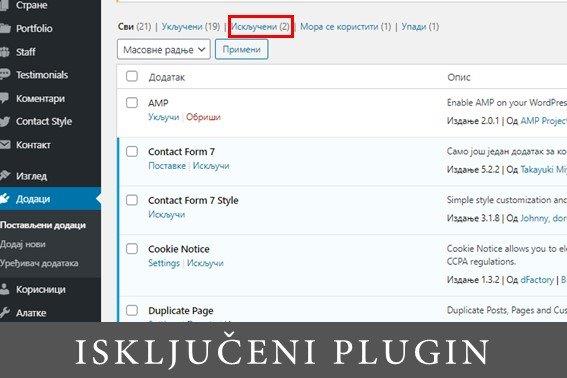
However, very often another solution is found and the plugin remains deactivated on the site, representing a potential security risk and taking up site memory. A disabled plugin can still make your site vulnerable, as it can still be used to run malicious code on your site. Most people do not take proper security measures, and thus websites become easy targets.
Therefore, it is best to deactivate the plugin when you just want to disable it temporarily. If you do not intend to reactivate it anytime soon, then it is better to uninstall the plugin . Note that you can always download and reinstall each plugin .
By properly uninstalling plugins , you also keep your database clean of the “junk data” that plugins often leave behind.
How to uninstall a WordPress plugin?
WordPress allows you to uninstall plugins from the admin panel. Simply log into your WordPress dashboard and go to the Plugins page. You will see a list of plugins currently installed on your site. Active plugins are highlighted with a blue background color and have a deactivation link below. Inactive plugins on the other hand have a link to activate, edit or delete them. Click the delete link below the add-on you want to uninstall. A screen will then be displayed asking you to confirm that you want to delete the plugin . WordPress will now safely remove the plugin from your web server.
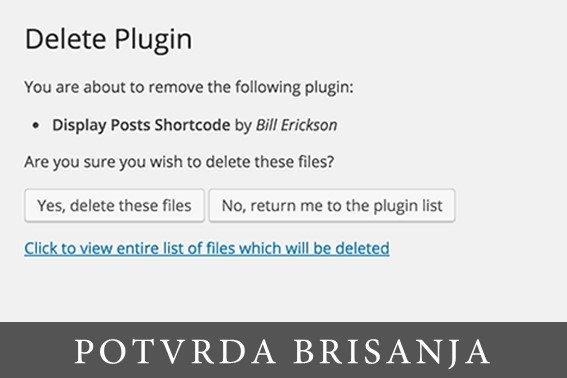
There are a few more steps you can take to remove all traces of the plugin . However, these steps are optional and not recommended for absolute beginners.
In most cases, simply uninstalling the plugin will completely remove it from the site. However, there are some plugins that store files outside the directory of the plugin itself. Those files will not be deleted when you uninstall the plugin. You can check and delete files saved by the plugin using an FTP client.
Cleaning the database
Some WordPress plugins create their own tables in the WordPress database. If these tables contain too much data, it increases the size of your WordPress backup .
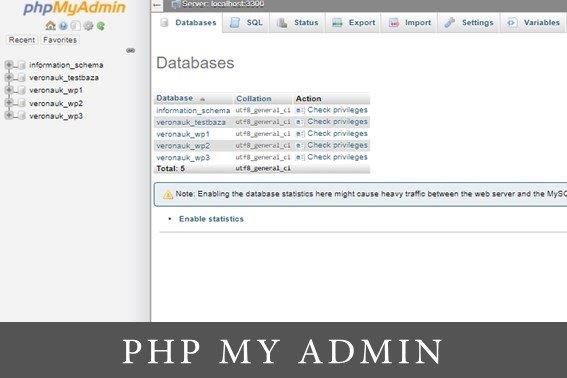
You can delete those tables using the phpMyAdmin section of cPanel . However, we must warn you that you should be very careful when making any changes to the database.
You need to click on your database and then select the tables you want to delete. Below the list of tables you will see a drop down menu labeled ” with selected “. You need to click on the drop down menu and then select ” Drop” . Then you need to confirm that you really want to delete the selected table from the database. Note that this process is irreversible. Once deleted data cannot be recovered unless you have a backup copy. phpMyAdmin will then delete all selected tables and all data in those tables.
If you liked this article, you can find many more interesting educational texts on our blog by clicking here.

Made by Nebojša Radovanović – SEO Expert @Digitizer
Pročitaj: