

WordPress is probably the most popular CMS platform for creating websites. 34% of websites on the Internet are made in this system, and over 60% of websites made in a CMS are made in WordPress . The great popularity of WordPress sites has also brought with it a negative aspect, namely numerous malicious attempts to breach the security of sites and break into the WordPress system. For this reason, regular care for site security is a necessary segment in normal functioning.
If you suspect something is wrong with your site, you’ll definitely want to perform a full security check to make sure your website is secure.
What is a site security check?
A security check is the process of auditing your website for signs of a security breach. It is especially important if you notice any suspicious activity, malicious code, or unusual drops in performance and traffic.
A basic WordPress site security check involves fairly simple steps that you can perform yourself. For a more thorough security audit, you can use one of the security checking tools that will automatically perform the checks for you.
When is the security check performed?
A site security check must be performed regularly, so that your site remains safe from potential attacks. This will allow you to stay up-to-date with all the happenings on the site and prevent any security holes before they do any damage.
Some of the signs that may indicate the existence of a problem on the site are: the site suddenly becomes slow, a drop in traffic on the site, the appearance of suspicious accounts for managing the site. What should you do when you notice any of these things?
Steps in security check
Here are the steps to take when checking the security of your site.
Software updates
WordPress updates are really important for site security and stability. They fix security vulnerabilities, bring new features and improve performance.

Make sure your core software, all plugins and themes are up to date. You can easily do this by selecting »Updates» from the Control Panel. WordPress will display available updates and offer the option to update.
Check user accounts and passwords
Next, you need to review WordPress user accounts by selecting the Users » All Users page. Here you will see if there are any suspicious user accounts that you do not know who created them. In most cases, you should only see user accounts for yourself or another user you added manually. If you see suspicious user accounts, you must delete them immediately.
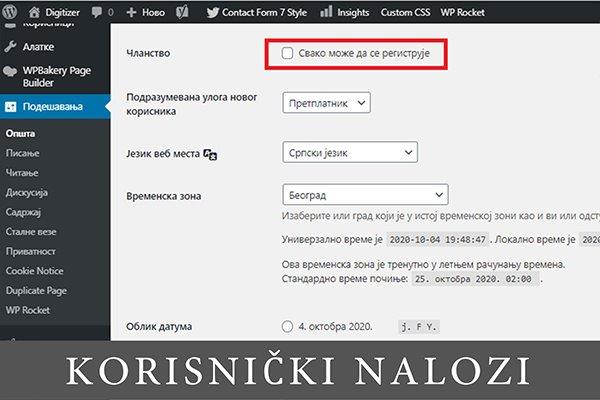
If your site does not require users to create an account, you should select Settings» General and make sure that the box next to the option “Anyone can register” is not checked.
Run a security scan
There are several security scanners that you can use to check your site for malware. One of them is IsItVP which checks your site for malware and other security vulnerabilities. These tools can be useful, but they still cannot perform an in-depth analysis of the site.
Check the analytics
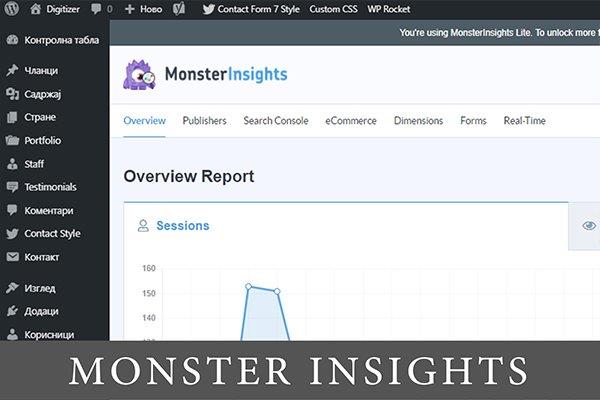
Analytics help you track traffic on your site. It can also be a pretty good indicator of your site’s health. If the search engines have blacklisted your site, you will notice a sudden drop in traffic. We recommend using MonsterInsights to track site traffic, as you can also use it to track registered users and more.
In addition to these steps, it is necessary to make regular backups of the site. This ensures that you always have a backup available in case something goes wrong. There are numerous quality plugins that make this job easier. Sometimes backup plugins can stop working without any notice. Therefore, it is necessary to regularly check whether they are functioning properly.
Visit our News & Stories page , you will surely find a topic that interests you.

Made by Nebojša Radovanović – SEO Expert @Digitizer
Pročitaj: